

The Barcode Inventory Management app for BigCommerce makes it easy to print barcode labels for your products, variants, or warehouse operations. Whether you’re labeling shelves, preparing inventory for picking, or restocking after purchase orders, the app helps you quickly generate accurate, scannable labels that match your BigCommerce catalog.
This guide explains how to print barcode labels, customize label quantities, and choose the correct label template.
Why Print Barcode Labels?
Barcode labels help you:
- Speed up warehouse workflows
- Reduce scanning errors during picking or receiving
- Ensure every product and variant is scannable
- Keep stockrooms and shelves clearly organized
- Improve accuracy when using other app tools like Pick & Verify, Add Inventory, and Live Inventory Modification
Finding Items
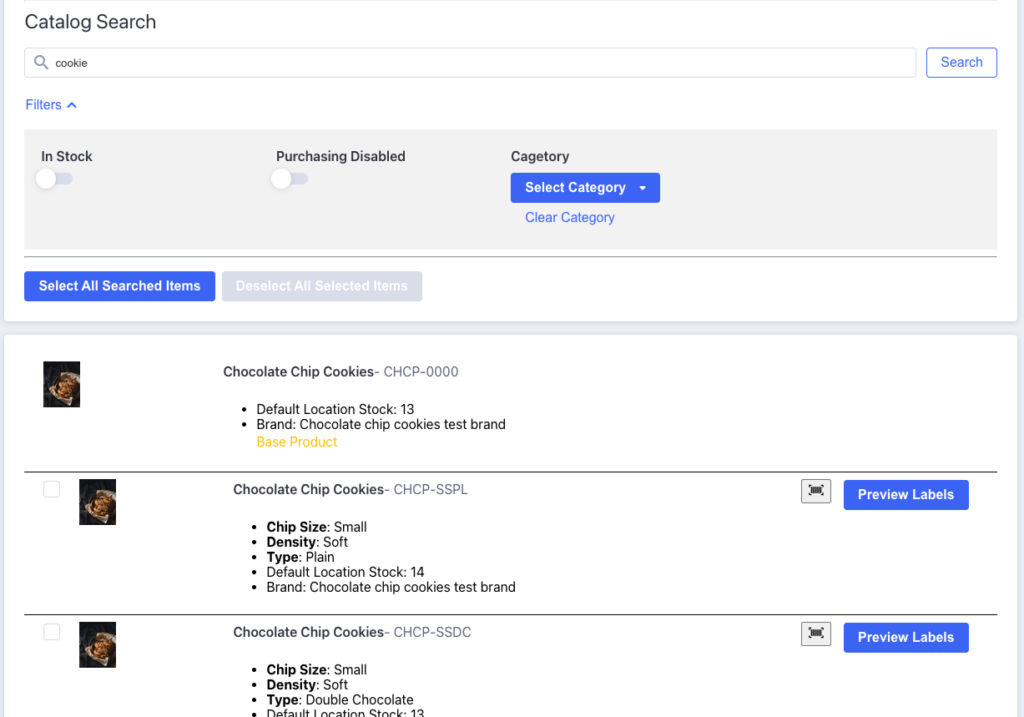
When you are ready to print barcode labels for your items, you need to search for products or variations in the Catalog Search input bar. Once complete, the search results will appear in a list below the search bar.
There are additional filters that can be used available in the Filters section. The In Stock filter will only search for products and variants with stock available at your store’s default location. The Purchasing Disabled filter will enable a search for product variants that do not have the purchasable option selected in a product’s variants list. Selecting a category from the Select Category filter will restrict a search to products and variants matching the selected category.
If a barcode image exists for an item that has been found, there should be two buttons on the right side of the listed item. Clicking on the barcode button will result in a raw download of the barcode’s image. If you would prefer to design and print barcode labels from other software, you can use this image.
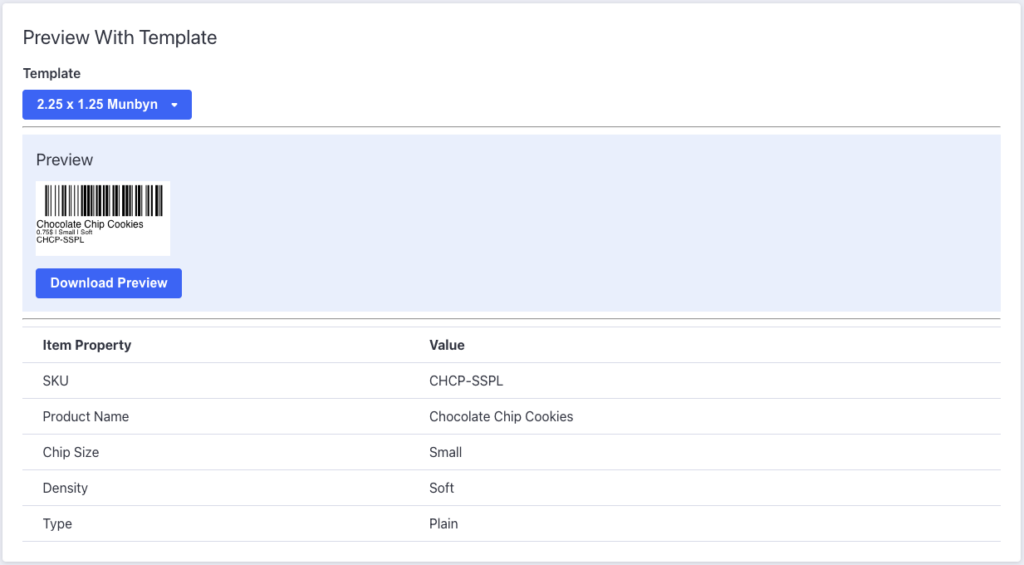
Clicking on the “Preview Labels” button will take you to a page where you can see a specific item with any saved templates. When you select a template from the templates list, you’ll see a preview of how the item will appear with that template. If you have any questions about whether or not an item’s information will fit on a template, this is where you should check.
You can also print this preview, if you’re looking to just print the one item.
Printing from Templates
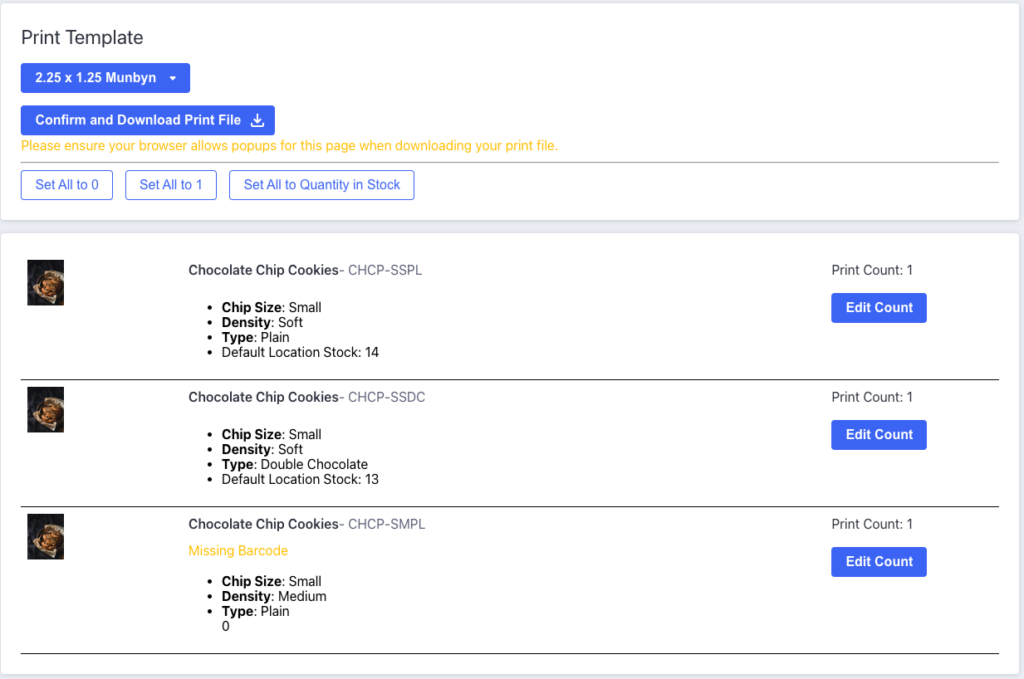
After you’ve selected which items you want to print labels for and clicked the “Print Selected Barcodes” button, you’ll see some options for printing your labels. You’ll need to pick a template (templates can be managed in the Manage Barcode Templates section), and set how many of each label you want to print.
There are three convenience buttons to set the count of labels for each item to 0, 1 or the quantity of the items currently in stock. Otherwise, you’ll need to click on each item and edit the count of labels you want for that item.
You can print templates with products and variants that don’t have barcodes generated. The area originally used to display a barcode will be empty. You will see a Missing Barcode warning for products without generated barcodes. You can ignore these warnings if you’re looking to print templates without those barcodes, or you’re using templates that don’t have barcodes enabled.
Please ensure your browser allows popups for this app when downloading your print file. Your print may be blocked otherwise!
Recommended Uses for Barcode Labels
- Stockroom shelving – keep bins and aisles clearly marked
- Product packaging – attach codes to loose or untagged items
- Incoming shipments – label products as soon as they arrive
- Order picking – improve scan speed and reduce mistakes
- Retail floors – ensure accurate scanning at POS
Troubleshooting Tips
- If a product or variant doesn’t load when scanned, double-check that its barcode is saved in your BigCommerce catalog in the SKU or UPC/EAN field.
- If labels do not align correctly, or become unscannable after printing, verify your printer page scaling settings (must be 100%).
- Use high-resolution printing for the cleanest barcode readability. The higher the DPI of your printer, the more dense a barcode you’ll be able to print (although most still have a maximum of around 12-16 characters per barcode).

Barcode Inventory Management for BigCommerce
Barcode Inventory Management can help you manage your store’s warehouse, inventory and orders. Try now, and get a 7 day free trial!
Hopefully this article has inspired you to make improvements to your inventory management systems. If you’re interested in reading more, check out our blog here, or try out the apps today. The Shopify, Ecwid by Lightspeed and BigCommerce versions of the app come with a 1 week free trial, so you can test them out, hassle free!
If you have any questions about A Thousand App’s apps, please reach out to us at support@athousandapps.com and we’ll happily address any concerns you have!