
The Picking Rules page manages the rules that steer how items are picked
in the warehouse app — which scans a picker has to make, which cart layouts
an item is allowed onto, and how items size out when order shipments are
converted to totes. Each rule targets a product, a variant, or a category.
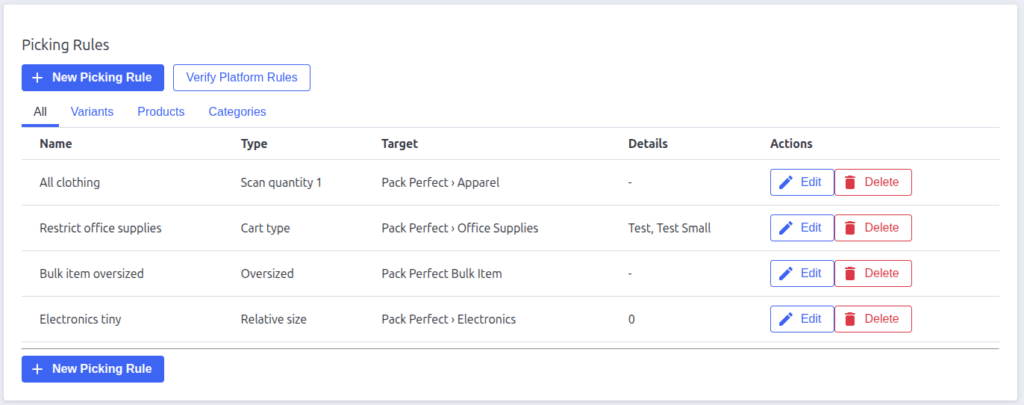
The rules list
Tabs filter the table by what rules target: All, Variants, Products, and Categories.
| Column | What it shows |
|---|---|
| Name | The short rule label |
| Type | The rule type (see below) |
| Target | What it applies to — a product or variant name, or a category path |
| Details | The rule’s setting — cart layout names for cart type rules, the size number for relative size rules |
| Actions | Edit opens the rule form; Delete asks for confirmation then removes the rule |

Rule types
| Type | What it does |
|---|---|
| Scan quantity 1 | The picker scans the item once instead of scanning every unit — one scan satisfies the whole line quantity. Use it for items picked loose or in bulk |
| Cart type | Restricts which cart layouts the item may be picked onto — the item only converts onto the layouts ticked on the rule (the built-in default cart is always available and never needs listing) |
| Relative size | How much tote space one unit takes during tote generation — 1 is a standard slot, 0.5 packs two units into a slot, 2 takes two slots |
| Oversized | The item doesn’t fit standard totes — shipments containing it can only be converted onto the default cart’s unlimited tote |
When several relative size rules could apply to the same item, the most
specific one wins: a variant rule beats a product rule, which beats a
category rule.
Verifying rules
Picking rules point at BigCommerce catalog objects, and products, variants
and categories can be deleted after the rule is created. Click Verify
Platform Rules to check every target still exists — rules that fail get a
warning icon next to their name and lose their Edit button, since they can
never match an item again.
Once invalid rules are flagged, Delete Invalid Rules removes them all at
once after a confirmation.

Managing rules
Click New Picking Rule to create one — see Creating and Editing Picking
Rules for the full field walkthrough. Use Edit to change a rule and
Delete to remove it (you’ll confirm first).

Pack Perfect
Pack Perfect is coming soon! Email support@athousandapps.com to be added to the list and we’ll let you know as soon as it’s released.