
The picking rule form defines one rule: the behavior it applies, the product,
variant or category it targets, and the label it carries. The same form is
used for new rules and editing — editing opens it with everything pre-filled.
Open it from App Settings → Picking Rules → New Picking Rule, or click
Edit on a rule.

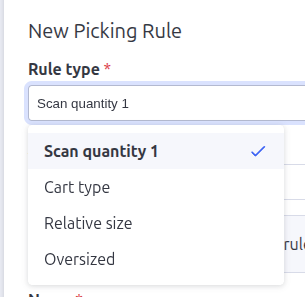
Rule type (required)
What the rule does:
- Scan quantity 1 — the picker scans the item once instead of scanning
every unit; one scan satisfies the whole line quantity. - Cart type — restricts which cart layouts the item may be picked onto.
- Relative size — sets how much tote space each unit of the item takes
when shipments are converted to totes. - Oversized — flags the item as too large for standard totes; shipments
containing it can only be converted onto the default cart.
Applies to (required)
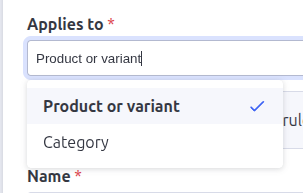
What the rule targets:
- Product or variant — pick a target using the Catalog Search card
that appears below the form. - Category — pick from a dropdown of your store’s categories (nested
categories show as paths like “Apparel › Shirts”).
Using Catalog Search
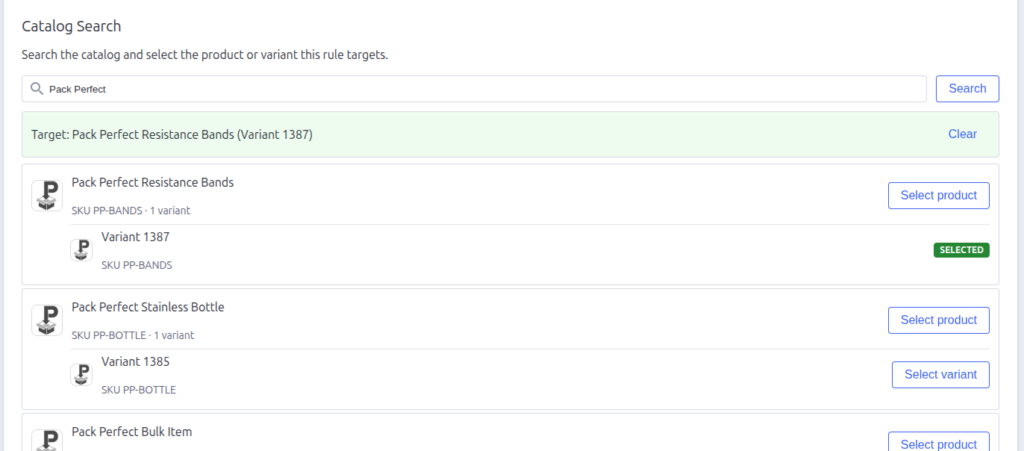
When “Product or variant” is selected, a Catalog Search card appears
below the main form. Type a product name or SKU — results appear as you type,
with each product and its variants listed.
- Select product — targets the whole product (every variant).
- Select variant — targets just that variant (the rule level is set
automatically from which you pick).
The selected target shows a “Selected” badge, and you can clear it to pick
again.
Type-specific fields
Cart layouts (cart type rules)
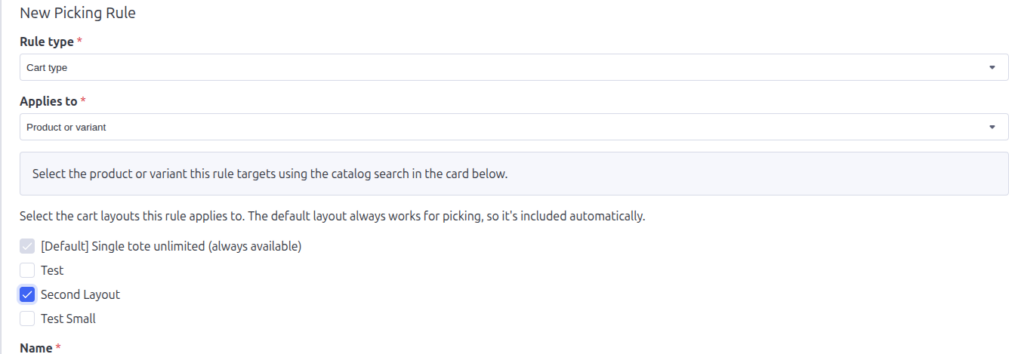
A checklist of your store’s cart layouts appears — tick every layout the item
is allowed onto. The built-in default layout is always ticked and can’t be
unchecked: it stays available for every pick. The rule needs at least one
non-default layout ticked before it can be saved.
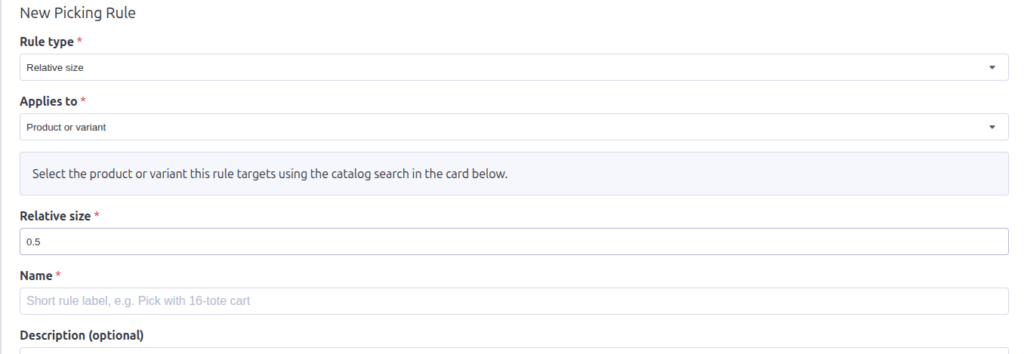
Relative size (relative size rules)
A number with up to two decimal places — 1 means one unit takes a standard
tote slot, 0.5 means two units share a slot, 2 means one unit takes two
slots. If several relative size rules could apply to an item, the most
specific target wins: variant beats product beats category.
Name and description
- Name (required) — the short rule label, e.g. “Pick with 16-tote cart”.
- Description (optional) — what the picker needs to know about the rule.

Saving
Click Create Picking Rule (or Save Picking Rule when editing). The
button stays disabled until a name and target are set — plus at least one
non-default cart layout for cart type rules, and a valid number for relative
size rules.

Pack Perfect
Pack Perfect is coming soon! Email support@athousandapps.com to be added to the list and we’ll let you know as soon as it’s released.