
The Active Batches page is your live view into the warehouse. Every batch
that has been created but hasn’t finished packing appears here, along with
its current status.
Status counts
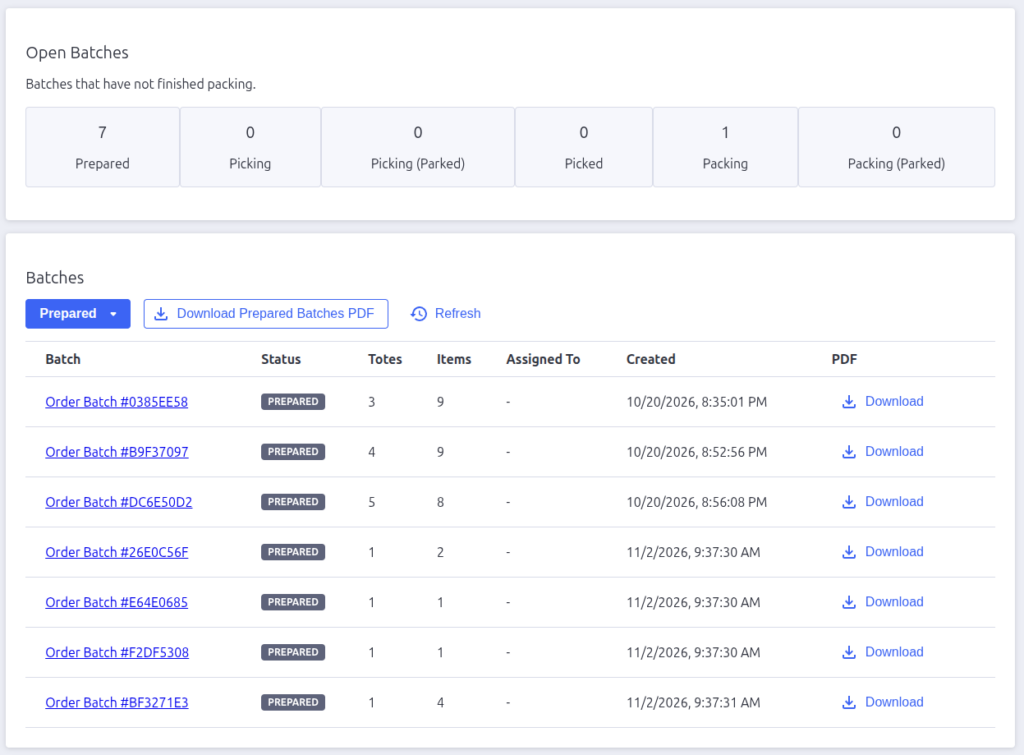
Across the top, six cards show how many batches are in each open status:
- Prepared — created and waiting for a picker
- Picking — claimed and being picked right now
- Picking (Parked) — paused mid-pick, waiting to be resumed
- Picked — picking complete, waiting for a packer
- Packing — claimed and being packed right now
- Packing (Parked) — paused mid-pack, waiting to be resumed
The batch list
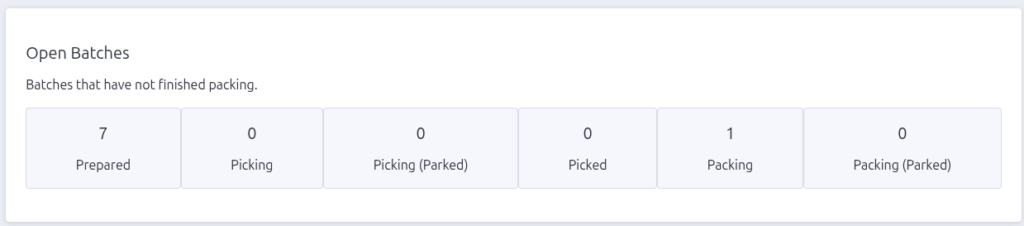
The table shows the batches matching the selected filter:
| Column | What it shows |
|---|---|
| Batch | The batch name — click it to open the batch detail page |
| Status | A colored badge for the current status |
| Totes / Items | How many totes and items the batch holds |
| Assigned To | The warehouse user currently working it, if any |
| Created / Due | Timestamps for the batch |
| A Download button for that batch’s PDF |
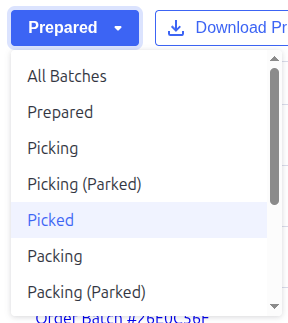
Use the status dropdown (left of the Refresh button) to filter the table —
choose All Batches or any single status, including the completed states
(Packed – Returns, To Return, Returning, Returning (Parked),
Complete). Click Refresh to reload the list.
Downloading batch PDFs
Two buttons produce printable batch paperwork:
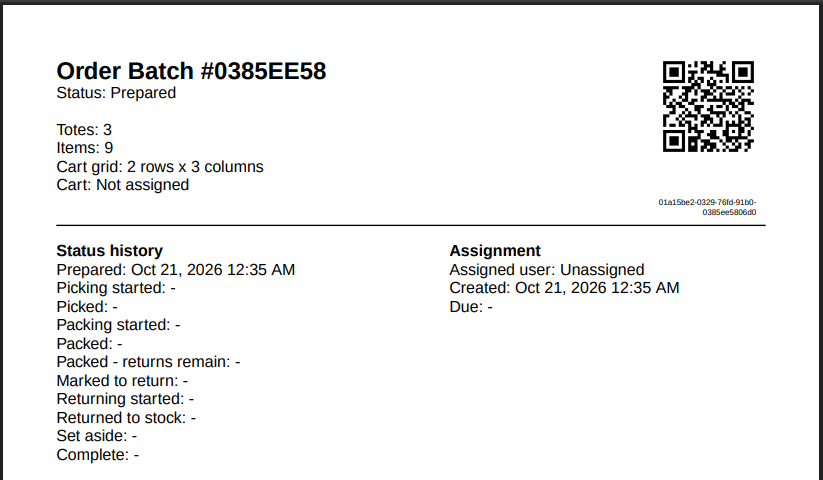
- Download Prepared Batches PDF — one combined PDF for every Prepared
batch (shown when the filter is All or Prepared). It’s disabled when no
prepared batches exist. - Download on any row — a PDF for that single batch.
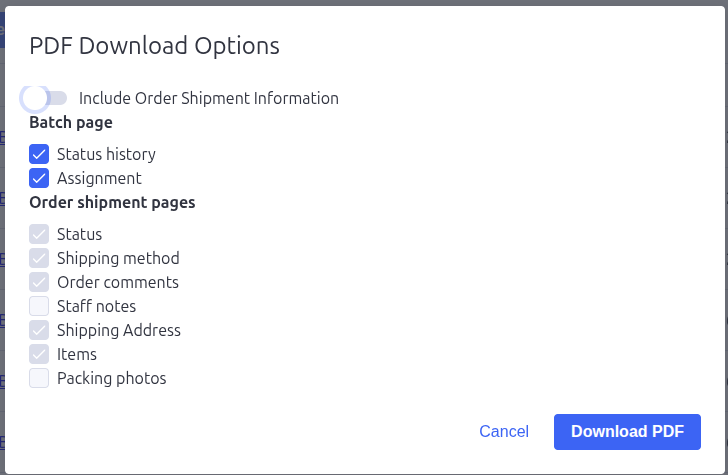
Both open a PDF Download Options dialog first so you can choose the
content:
- Include Order Shipment Information — a master switch for the
per-shipment pages. - Batch page — Status history, Assignment.
- Order shipment pages — Status, Shipping method, Order comments, Staff
notes, Shipping Address, Items, Packing photos.
Click Download PDF and the file opens in a new browser tab — if nothing
appears, check that your browser allowed the pop-up.
Digging into a batch
Click a batch name to open its detail page, where you can see the full status
history, who’s assigned, every order shipment with its address, the tote
positions on the cart, any items left for return, and the complete item list.

If the table says “No batches found”, assign totes to batches from the
Convert Order Shipments page first.

Pack Perfect
Pack Perfect is coming soon! Email support@athousandapps.com to be added to the list and we’ll let you know as soon as it’s released.